
Appearance
Compile Plain Text TI Basic to 8XP
Powerpack understands both binary 8XP programs (such as those written in TI Connect CE) and plain text TI Basic. You can write your programs in whichever format you prefer.
You might like to use plain text format for writing programs in VSCode or your favorite text editor. With VSCode you will have access to AI coding assistants like Copilot.
When you run Powerpack.exe on your program, it will detect the format, process the file, and compile it into 8XP binary format, ready for loading into an emulator like WabbitEmu or for transferring to your calculator.
Both of these commands will work the same:
powerpack MYPROG.8xp
powerpack MyPlainTextCode.8xppp
8xppp extension
While any filename extension will work for basic compilation, if you want to code in plain text format and make use of the auto-run feature, be sure to name your file with an .8xppp extension so that it’s detected. (8xppp stands for “8XP Powerpack”.)
Future versions of Powerpack will allow you to customize this and use whichever extension you prefer.
Program name
One key difference between the 8XP binary format and using a plain text format is that the 8XP binary format allows you to specify the 8-character name of the program that is shown on your calculator — and this doesn’t have to match the filename.
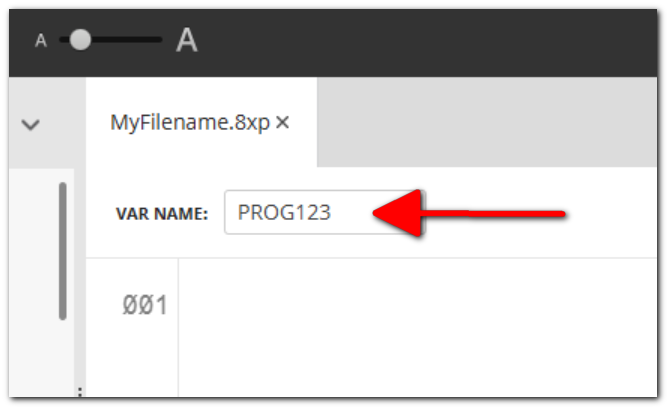
However, when compiling from plain text format, the name of the program will be determined from the source code filename by taking the first 8 characters and converting them to uppercase.
A future version of Powerpack may allow customization of this filename, but that is how it works for now.
TI Basic syntax
The syntax for writing programs in plain text is designed to match the syntax as used in TI Connect CE as closely as possible. There may be a few minor situations where the syntax is different, and we will aim to document those here.
This requires the use of some special characters which are not easily typed from your keyboard, including:
→ // The STO→ character
- // The negative symbol, different from a minus/hyphen
≠ // Not equal
≥ // Greater than or equal
≤ // Less than or equalKeyboard shortcuts help greatly in working with these characters.
If you’re coding in TI Connect CE, these characters are all available from the list in the left pane, which requires no extra software.
If you’re using another editor, you might like to create snippets for these extra characters or set up keyboard shortcuts using something like Espanso. Read our guide on keyboard shortcuts.