
Appearance
Getting Started
Powerpack is designed for writing TI Basic 8XP programs which run on the following Texas Instruments calculators:
- TI-83 Plus
- TI-84 Plus (monochrome screen)
- TI-84 Plus SE (Silver Edition, monochrome screen)
- TI-84 Plus CSE (colour screen)
- TI-84 Plus CE (colour screen)
It will probably NOT work for:
68k TI Basic, TI-Nspire Basic, TI-89, TI-92, TI-Nspire, Voyage 200 calculators
Requirements
- Windows 7 or above — Powerpack is primarily tested on Microsoft Windows
(although it is possible to run Powerpack on Mac OS using Wine) - TI Connect CE (Texas’ recommended editor) for writing code and for transferring your programs to the calculator. You can also write code in any text editor, such as VSCode. Learn more here.
- WabbitEmu Optional — the recommended emulator for testing your 8XP programs on your computer, before transferring them to your calculator. You’ll also need a ROM image for your particular calculator.
Installing
Download Powerpack.exe and place it in a folder of your choice.
You may like to place it in the same folder as your 8XP programs, which can make using it easier, but this is optional.
Quickstart tutorial
Ensure you have the necessary applications installed, as listed above
Download Powerpack.exe and place it in the same folder as your 8XP program
In TI Connect CE, copy and paste the following code into a new program, set the “Var Name” to
HELLO, and save it asHELLO.8xp#define @Name John // Say hello, 3 times For(I,1,3) Disp "Hello @Name" EndIn Windows Explorer, drag and drop your program onto
Powerpack.exe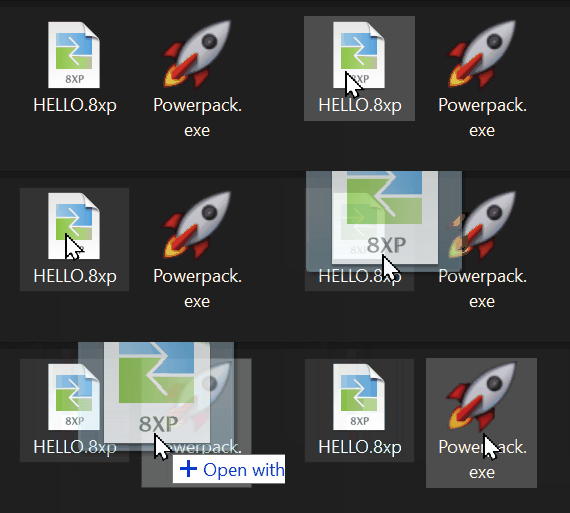
It will process the code, removing comments and whitespace, and save the result into:
Compiled Programs\HELLO.optimized.8xpThe compiled code will look something like this (you can open it to check):
For(I,1,3)
Disp "Hello John
End
Drag and drop the compiled file into WabbitEmu to load it, then press PRGM to run it. Or you can load the file onto your calculator and run it from there.
Be sure to transfer the
HELLO.optimized.8xpfile NOT the originalHELLO.8xpfile.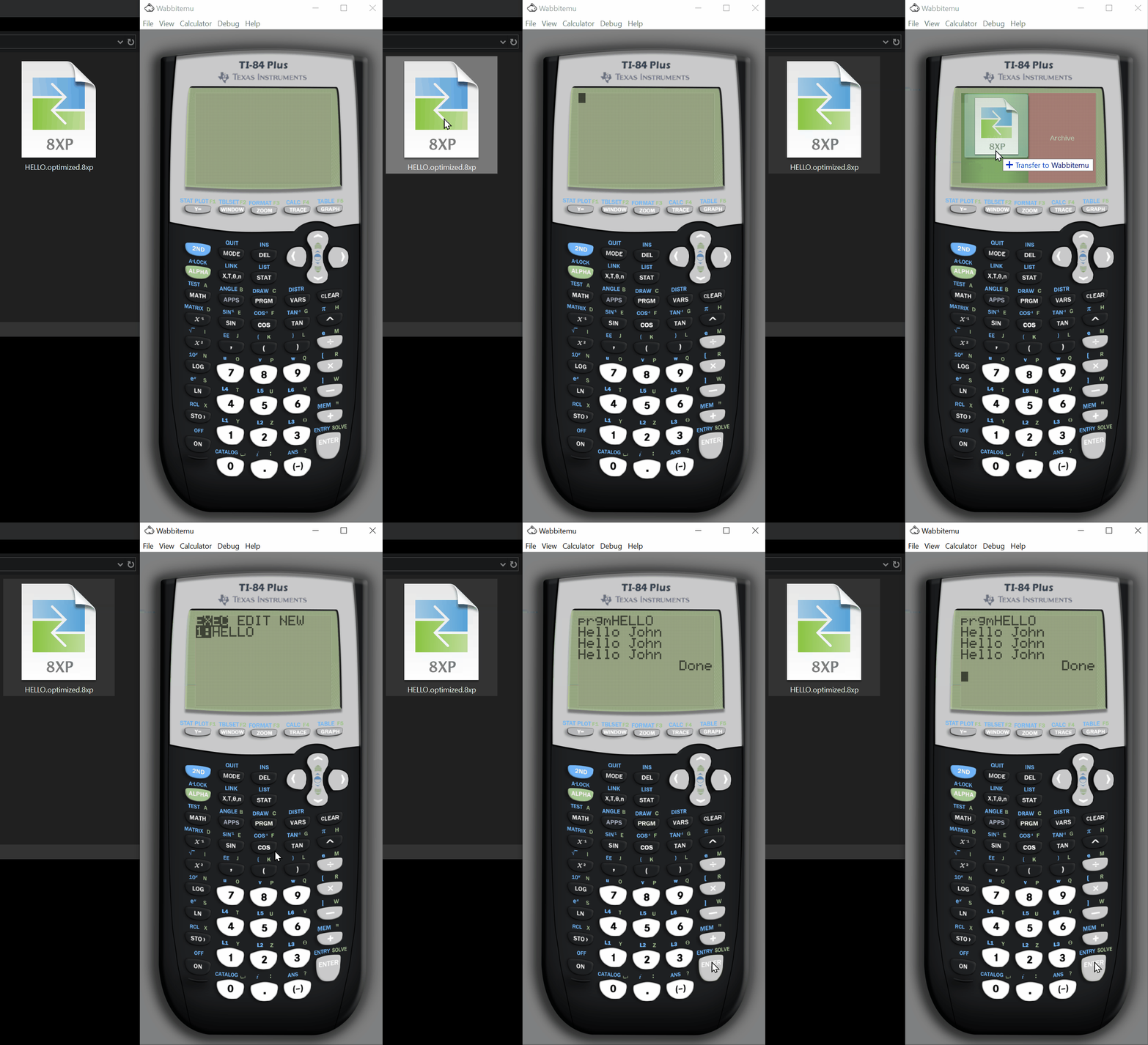
You can use Powerpack just like we have done above, but to avoid the dragging and dropping steps, we can let Powerpack detect any changes to the file and load it into WabbitEmu automatically. Here’s how:
Double click
Powerpack.exe. It will open and pause, waiting for any changes to occur in 8XP files in the current folder.Make a change to the original source code file. Perhaps change the name “John” to something else. Save the file.
Powerpack should detect the changed file, recompile it, and since WabbitEmu is currently running, it will load the updated file into WabbitEmu and even press the ENTER key to re-run it.
You should see the program re-run, this time with a different name printed on the screen.
✅ Done!
Now you might like to explore the rest of this guide to find out other useful things you can do with Powerpack.
Ways of using Powerpack
Depending on your preferred workflow, there are several ways you can use Powerpack:
Watch the current folder: place
Powerpack.exein the same folder as your 8XP files and double-click it to run. It will monitor the current folder for any changes to 8XP or 8XPPP files, and as soon as it sees a modification, it will automatically process and create an optimized version of that.8XPfile.Process specific files: by dropping 8XP files onto
Powerpack.exe(or specifying them on the command line) only those files will be processed and thenPowerpack.exewill exit.Watch another folder: by dropping any folder onto
Powerpack.exethat folder will be watched for any changes to 8XP or 8XPPP files and compilation will happen automatically.
TIP
You can also do a combination of the above by dropping both files and a folder onto Powerpack.exe. The files will be immediately processed, and then the folder will be watched for further changes.
Or you may like to setup a Windows shortcut or BAT file that specifies the files/folders to use, for example:
Powerpack.exe "My Programs\MYPROG.8XP" "My Programs"